★★★★★"Finally got my info off those creepy people search sites. ZeroPrivacy made it easy!"Sarah K.
★★★★★"Tried doing opt-outs myself... what a nightmare. This service saved me hours."Mike P.
★★★★★"Feeling much safer online knowing my data isn't being sold anymore. Highly recommend!"Jessica L.
★★★★★"Found my details on sites I'd never even heard of. ZeroPrivacy removed them all."David R.
★★★★★"Impressed with how quickly ZeroPrivacy handled my removal requests. A+ service."Emily R.
★★★★★"Worth every penny for the peace of mind. So much data was out there!"Alex T.
★★★★★"Finally got my info off those creepy people search sites. ZeroPrivacy made it easy!"Sarah K.
★★★★★"Tried doing opt-outs myself... what a nightmare. This service saved me hours."Mike P.
★★★★★"Feeling much safer online knowing my data isn't being sold anymore. Highly recommend!"Jessica L.
★★★★★"Found my details on sites I'd never even heard of. ZeroPrivacy removed them all."David R.
★★★★★"Impressed with how quickly ZeroPrivacy handled my removal requests. A+ service."Emily R.
★★★★★"Worth every penny for the peace of mind. So much data was out there!"Alex T.

Identity protection starts here

TruthFinder Opt Out: Remove Your Personal Information

TruthFinder may expose details such as your name, phone number, address, relatives, and background records. ZeroPrivacy scans TruthFinder and hundreds of other data brokers, helps remove exposed personal data, and monitors for it to reappear.

US Flag+1
Free Scan | No Sign-up Required
By providing your number and requesting a number risk scan below, you agree to receive a one-time message from Zeroprivacy with your scan results. You confirm that the phone number belongs to you, and consent to receive a verification code. Subject to Terms of Service, Prohibited Use Policy, and Privacy Policy.

ZeroPrivacy:

Does not store, sell, or share your personal data
Is SOC 2 compliant and uses end-to-end encryption
Only processes your information to deliver results securely
View our full privacy policy

Disclaimer: You agree not to use any aspect of the ZeroPrivacy Services for FCRA purposes.

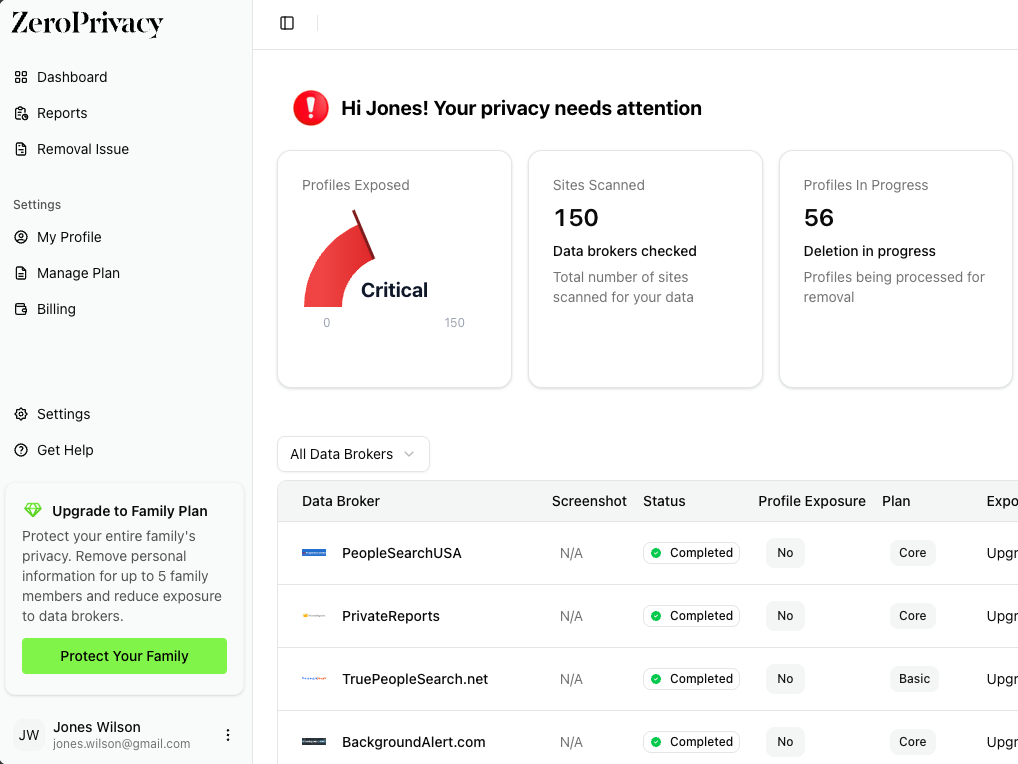
Profile information cards showing data broker exposure like TruthFinder

Step-by-step privacy guide

How to opt out of TruthFinder

TruthFinder handles removal through the PeopleConnect Suppression Center. The order matters: verify your email, identify yourself, find the right record, prove that the record belongs to you, then change its setting from Displayed to Suppressed.

Time needed
About 10–15 minutes
Cost
Free
TruthFinder account
No paid account needed
Have ready
Your date of birth and access to a listed email or phone

Step 1

Open the PeopleConnect Suppression Center

Use the privacy tool that controls whether a matching background report is displayed on TruthFinder.

Go directly to the PeopleConnect Suppression Center. TruthFinder is part of the PeopleConnect group, and this is the tool used to manage the visibility of its people-search reports.

You do not need to purchase a TruthFinder membership or run a paid background report. The page should be headed “Suppression Center” and begin with an email field.

Step 2

Enter an email address you can open now

PeopleConnect sends a link to this inbox before it shows the identity form.

Enter an inbox you control. An alias is suitable here because this address is being used to open the suppression tool, not yet to prove ownership of the report.

Read the linked Terms of Use and Privacy Policy, select the consent checkbox, and choose Continue. Leave this browser tab open while you check your mail.

Check: No email after a few minutes? Check spam and promotions, then request one fresh message. Use the newest link you receive.

Step 3

Open the verification link

The email link returns you to the Suppression Center and unlocks the identity questions.

Find the message from PeopleConnect and open its verification link. If your email app warns that the link will open a browser, allow it only after confirming the destination belongs to peopleconnect.us.

Continue in the same browser session if possible. You should land on the first identity screen rather than the public TruthFinder search page.

Step 4

Enter your date of birth carefully

PeopleConnect uses your birth date to separate your record from people with the same name.

Type your full date of birth exactly as requested. Check the acknowledgement confirming that the date is correct, then choose Continue.

The Suppression Center warns that the saved birth date cannot be changed in this flow. Stop and correct any typo before moving on.

Check: Do not guess at a date or use someone else’s information. A mismatch can hide the correct record or make it impossible to verify.

Step 5

Add the names that could appear on the report

Use your current legal name first, followed by former names or genuine name variations when relevant.

Enter your first, middle, and last name as they appear in public records. Mark your current legal name using the checkbox on the form.

Add a previous legal name, maiden name, or long-used variation only if it may be connected to your records. More accurate names can surface a split or older listing; unrelated variations create noise.

Step 6

Select the record that actually belongs to you

Treat the results as a matching exercise, not a name-only search.

Compare the name, birth-date range, locations, email addresses, and phone numbers shown for each result. Some contact details may be partially masked.

Select the radio button beside the record whose details line up with your history, then choose Continue. If two records both appear to be yours, finish the first one and return for the second.

Check: If nothing matches, go back and check the birth date and names. Never choose a record simply because the name is similar.

Step 7

Verify one contact method from the record

This second check proves that you control an email address or phone number attached to the selected report.

Choose a masked email address or phone number that you recognize and can still access. Enter the full address or number, then request a verification code.

Retrieve the code from that inbox or phone, enter it in the Suppression Center, and submit it. After the site marks the record as verified, choose Continue.

Check: If every listed contact method is unfamiliar or inaccessible, do not enter a substitute. Ask PeopleConnect privacy support to help verify the record.

Step 8

Change Desired Behavior to Suppressed

Verification alone does not hide the report; you still have to save the suppression setting.

On the Control screen, find the Desired Behavior menu. Change the selection from Displayed to Suppressed.

Choose Save and wait for the update to finish before closing the page. The matching background report should now be configured as suppressed across PeopleConnect’s people-search websites.

Check: This is the step that removes the report from public display. Do not stop after entering the verification code.

Step 9

Confirm the saved status

Check the setting inside PeopleConnect before testing the public listing.

Open Suppression Settings and confirm that the verified report is labeled Suppressed. Save a screenshot or note the date for your records.

After the public site has had time to update, search TruthFinder in a private browser window. A private window avoids showing an old page from your browser cache.

Check: If Suppression Settings says Displayed, change it again and save. If it says Suppressed but the public record remains visible, contact privacy support with the record ID shown in the Suppression Center.

Step 10

Look for a second record and schedule a recheck

Former names and old addresses can produce more than one report for the same person.

Return to Matching Records and review any other result that clearly belongs to you. Verify and suppress each matching report rather than assuming the first setting covers a duplicate.

Search again after a few weeks using a former name or previous location. Keep the PeopleConnect email and your screenshot so you have a clear record if the listing returns.

Common questions

Do I need a paid TruthFinder account?

No. The PeopleConnect Suppression Center is free to use. It requires email verification and identity matching, but it does not require a TruthFinder subscription or a paid report.

Why does PeopleConnect ask for my date of birth?

The Suppression Center uses the date to distinguish your record from records belonging to people with the same or a similar name. Check it before saving: the current form warns that the date cannot be changed afterward.

What if I cannot access any email or phone number on the record?

Do not use a contact method that belongs to someone else. Contact PeopleConnect at privacy@peopleconnect.us and include the record ID shown in the Suppression Center so its team can help with another verification route.

How do I know the request worked?

Inside Suppression Settings, the matching report should show Suppressed rather than Displayed. Then check TruthFinder in a private browser window after the public site has updated.

Does this remove my information from every data broker?

No. The setting applies to the matching report across PeopleConnect’s people-search websites. Companies outside that group keep separate databases and require their own requests.